|
Markers indicate locations for photos on this page.
Accuracy responsibility of Google Maps
Google Map Goes Here
If you see this text, the map is still loading (or there's an error). |
Introduction
As you will soon learn, this tells you nothing. It's like saying to the hair stylist, "Give me a haircut." You can imagine the response: "Okay... How much do you want cut?" Similarly, perhaps you've heard this expression:
Again, this is incomplete. That's like going to the grocery store and saying, "I'd like to buy apples at $.99/pound," as you hold out an open bag. The guy will just look at you blankly, waiting for you to specify how many pounds of apples you want.
Compounding the problem is the growing trend for licensed images to be priced on overall pixel count (or, "the size of the picture"), regardless of the size which it may be printed, or even which media is used. This means that if someone requests an image at 300dpi to produce a 20x30" poster, they could pay twice as much for an image than they needed to if it turns out that their printing device reproduces images perfectly well as 150dpi. In essence, they could have licensed an image at half the size, for half the price, and gotten exactly the same quality result.
Definitions
But first, don't confuse "DPI" with the term, resolution. The two are often interchangeable in discussion, but there is a huge difference in meaning. "Resolution" just refers to the total number of pixels in an image. That is, it's as an absolute value. For example, one can say, "this photo has a resolution of 5000 pixels," which means that there are 5000 pixels in the whole image. You don't know whether it's square or rectangular, because you don't know how many pixels represent the vertical or horizontal dimensions. You just know it's got 5000 pixels. How many represent an inch is unknown, but it's also irrelevant; those are all the pixels you've got, so however you spread them along a canvas is your choice. To make it very simple to understand, let's say we have an image that's 5000 pixels wide and 3000 pixels high. It has a "resolution" of 5000x3000. This resolution spec has no mention of how many of those pixels represent an inch. It's just a fixed size. When looking at the image on film, the grains are really, really tiny, so there can be many thousand "dots" per inch. Whereas, that same image can be shown on a slide projector onto a wall. The further back you go, the bigger the picture appears. What's going on is intuitive: the light projects the dots on the wall, spreading them farther apart as the projector backs up. The image isn't changing, but the perceived size is. How many of those "dots" represent an inch changes as the projector moves, even though the original image isn't changing at all.
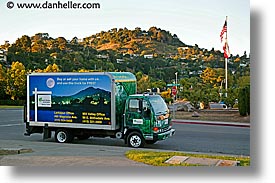
Let's apply this concept to a real-life scenario: the image below is
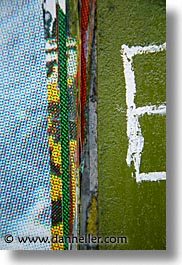
represented in two contexts:
Looking at these photos, you can see how the translation occurs. The 35mm frame of film has tiny dots, and the truck is covered with a huge sheet of paper that has big dots (that are also spaced apart). Where "DPI" comes is when you're talking about how many of those dots represent an inch. On the slide, we assume we're going to scan it at the highest resolution possible. However, the output device that prints the paper that goes around the truck, that's what we need to know. How many "dots" make up an inch? If we don't know, we have no idea what to tell the printer do. If we just feed it dots without specifying a DPI, we could end up with the image printed on only half the paper because it happened to choose an arbitrary value. The goal would be similar to that of setting up a projection screen on one side of the room, and a slide projector on the other. You want to fit the entire image onto the screen, so you push the projector back and forth till it fits. This is a way of adjusting the DPI real-time. But, for the truck, it could be wasteful and expensive to make a bunch of test prints with different DPI values till we have one where the image happens to match the paper size. Instead, we can just apply simple math: the total number of pixels divided by the total square inches of the paper. That's the total number of "pixels per inch."
The whole reason for specifying a DPI value is to adjust your image to match the output specifications to that of the output/printing device. People who know this stuff don't just ask for a high-res image or a 300dpi image, they ask for an image either at a specific resolution, or indicate the final output size along with the desired DPI. For example, a company that makes postcards might request images at 4x6" at 330dpi because they know that most postcard printers print image optimally at that resolution. If a European company ask for an image at size A4 at 200dpi, you can determine that size by converting the metric system to inches. (Although Americans have to first figure out what the heck "A4" means.) This translation is easily done in Photoshop's "New Image" dialog. The person who ordered the image for the truck didn't know, so I had to call the paper manufacturer to determine what DPI his device printed at. Turned out, it was about 24dpi. So, to calculate the size of the image I needed for the sheet of laminent that fits on the side of the truck, I multiply 14 (the long dimension of the truck) times 24 (the DPI of the printer), to get 4032. That's the number of pixels that my image needs to have in the long dimension to print properly on this truck. Assuming the image is 4032 in the long dimension, and assuming I'm using an image shot with a standard 35mm camera (film or digital), then the aspect ratio is 3:2. That is, for every three pixels in the long dimension, there are two pixels in the short dimension. This means that the total dimensions of this image must be 4032x3024, which is about a 12 megabyte file. The alert reader may notice that a 14x6 foot truck isn't the same aspect ratio as a 3:2 photo, so some of the picture is cropped at the top and bottom in order to fit onto the paper.
Scanned Film and DPI
One thing you could do is change the DPI value on the scanner from 300dpi to, say, 3000dpi. Doing the math, 3000 is ten times more than 300, so you'll end up with ten times the total number of pixels from the first scan. Accordingly, it seems like it would be ten times bigger when you print it on paper. Will it be? It depends on two things: first, whether you tell your printer to ignore whatever DPI value is embedded in the image and print at the value you tell it to. Second, whether you changed the DPI value on the image itself, before you sent it to the printer. You can do the first option if you use software that supports the feature, such as Adobe Photoshop (see the "Print Preview" screen). Most people overlook this (or don't have it available in their software), so they are subject to the often unpredictable results from the second condition: what the embedded DPI value is in the image. Because you scanned at 3000dpi, the image will still have that "3000dpi" value embedded in its data header. Hence, the generic printer will comply, "Ok, I'll interpret the image so that every 3000 pixels represents one inch," which will give you exactly the same result: a small print.
So, the thing to do is change the DPI value after the scan, to the
desired value so your printer will interpret it as desired. Choosing
300dpi, you'll get an image that's 9x16 and look pretty darn good. But it
will also likely exceed to size of your paper. To reduce the image to
a size that fits on a page, you can do one of several things:
onto an 8½x11 sheet of paper.
count ("resolution") to a size where 300dpi fits onto the paper.
pixels you need.
If you think this is confusing, this is exactly the kind of headache you're going to give someone else if you deliver them the wrong sized image. And that will happen if you don't get the full and appropriate specifications from them in the first place.
Tricky and Sticky
Where things get tricky and sticky, is determining the real DPI values for any given device. There is no universal DPI that's consistent across all printing platforms, just as there is no one universal hair length for, "give me a haircut." Nor is there a preset number of apples get you if you ask for them at $.99/lb. Although DPI values vary dramatically, most people who request images have no idea what their device actually needs, but "300dpi" is the de-facto standard for historical reasons. Since most printing systems can commonly print consistently adequate results at 300dpi, there's not a huge incentive to fight the system. So, when a graphic designer insists that you provide an image at 300dpi, even though they don't really need it, it's sometimes best to let them have it. (You still need to know the final output dimensions in inches though!) The exceptions to this come in when costs are involved (the client wants to spend less money), or it's physically impossible to meet the specs. We'll illustrate these scenarios in the next section.
Q&A Exercises
The "correct" thing to do in this case is to explain that the highest resolution file you have is likely to be sufficient, and that they should run a test print to check. If you can't get them to do that, or if the test print still yields a coarse image due to pixilation, an alternative is use software (like Photoshop or Genuine Fractals) to "interpolate up" the image. That is, you can add pixels based on imaging algorithms that can approximate what will keep the integrity of the picture while increasing its overall resolution. There are limits to how far this technique will work, but the good news is that if you're dealing with a client where those exceptions would apply, they'll already know, and know how to correct the problem on their own. On the other hand, maybe not. I had one client that was so worried that the 300dpi file that I gave her would be insufficient for a print job that she insisted would only work with a 600 dpi file. I tried to tell her that the image would work just fine given the final output size she needed, but I was unable to convince her. I finally just broke down and said I'd send her a new file, but because it was literally impossible to make such a high-res image, I merely brought the same image into Photoshop, changed the DPI value from 300 to 600, leaving the entire image data alone, and sent it back to her. The image came out as expected, and she was perfectly happy with the results.
Summary
Digital cameras have similar considerations because they also capture images in multiple resolutions, but because they have upper-bound limits, you may have limits on what you can license. Digital cameras don't measure images in terms of "dots per inch," they just capture a fixed number of pixels for any given picture. While you can set your resolution to various sizes, you should set your camera like you'd scan a photo: capture the highest resolution possible to optimize your image quality. An eight-megapixel camera has a total resolution of about 3520x2344; not as much resolution as 35mm when scanned at its maximum setting, but sufficient for many commercial needs. They can also produce fine art prints up to 14x20, given sufficiently artful image editing skills. As digital cameras evolve, resolutions will get bigger, making most of these issues less of a concern. (The issue will never go away, but the anxiety about it will diminish.)
Click to recommend this page: |
|

 You've sold a photo to a magazine who wants to use it in an
article. They ask you for a digital image that's 300 dpi.
What do you give them?
You've sold a photo to a magazine who wants to use it in an
article. They ask you for a digital image that's 300 dpi.
What do you give them?
 There is no correct answer to this until you know what their final
desired output size is. If they say they're going to print a quarter-page,
you still don't know. You need a specific size in some measurement,
preferably inches, so you can apply the "300dpi" part. (If you get mm
or cm, you have to convert to inches first.) Assuming they're requesting
the image to be 9" high, you now know its vertical resolution:
9 X 300 = 2700.
There is no correct answer to this until you know what their final
desired output size is. If they say they're going to print a quarter-page,
you still don't know. You need a specific size in some measurement,
preferably inches, so you can apply the "300dpi" part. (If you get mm
or cm, you have to convert to inches first.) Assuming they're requesting
the image to be 9" high, you now know its vertical resolution:
9 X 300 = 2700.